Deploy Live Platform Portal Application to Tenant
Logging into the Live Platform Operation Center portal for the first time must be performed with the Global Adminuser of the M365 customer tenant. In the process, an Enterprise Application is then added in Microsoft Entra ID under the customer tenant, for example, ‘LTC-OVOC-Sandbox3’.
|
●
|
Perform this procedure with ‘Global Admin’ permissions for the consenting tenant. |
|
●
|
The same application registration can be used to manage all services on the Live Platform portal. |
|
●
|
The Live Platform operator user does not require the assignment of any Microsoft Entra ID roles. |
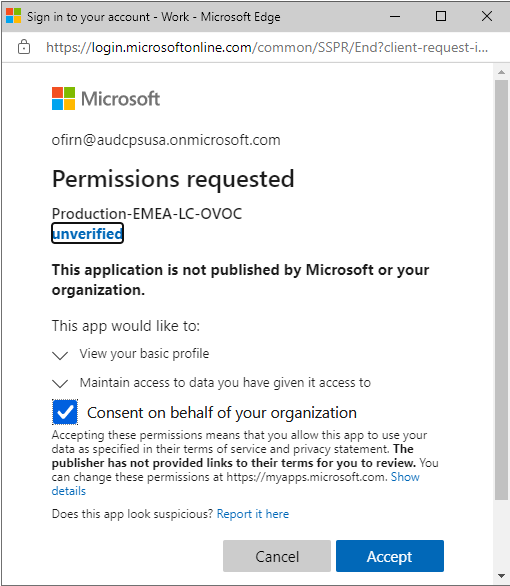
The login process requires the Global Admin user to provide consent for the following permissions (see figures below):
You must then login to the Microsoft Entra ID with the Admin user, navigate to this Enterprise application and assign one of the following Live Platform roles to this user:
|
1.
|
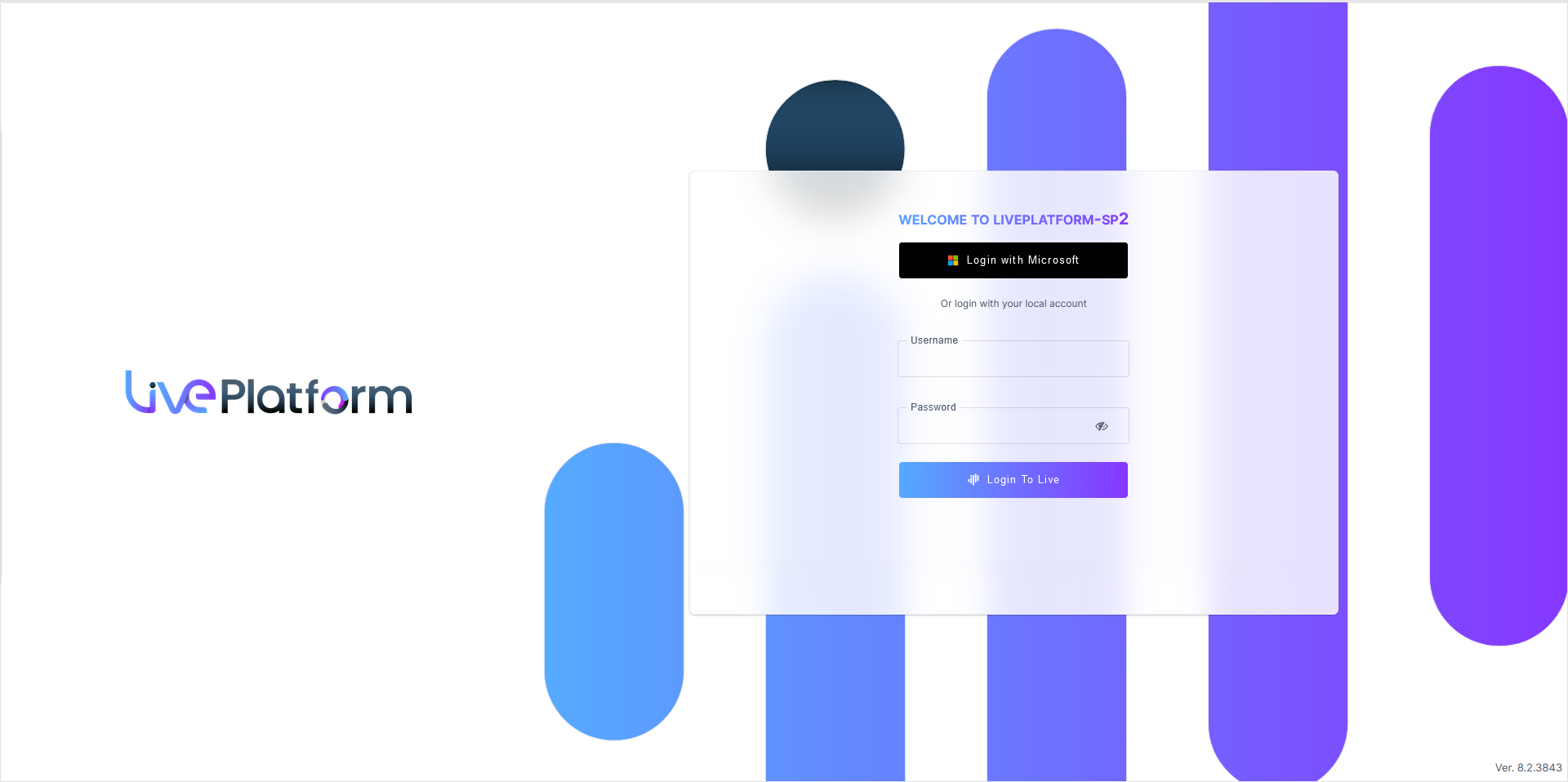
Login to the Live Platform interface with Global Admin permissions for the tenant. |
|
2.
|
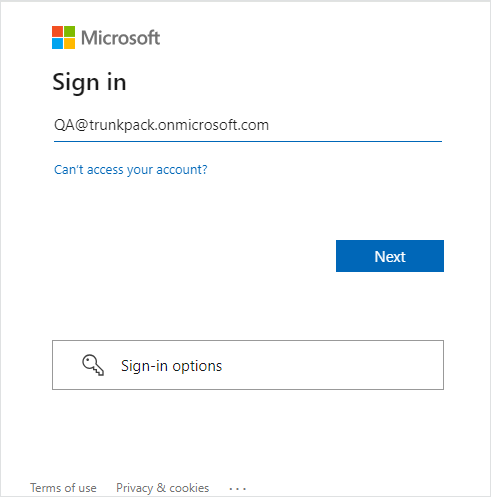
Click Login with Microsoft. |
|
3.
|
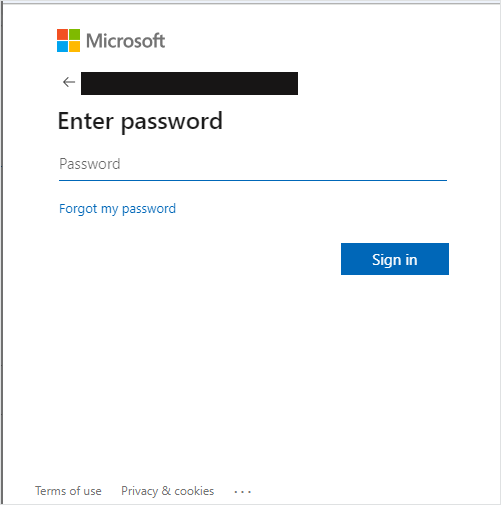
Enter the credentials of the Service Provider user. |
The Azure authentication and Permissions request dialog is displayed:
|
4.
|
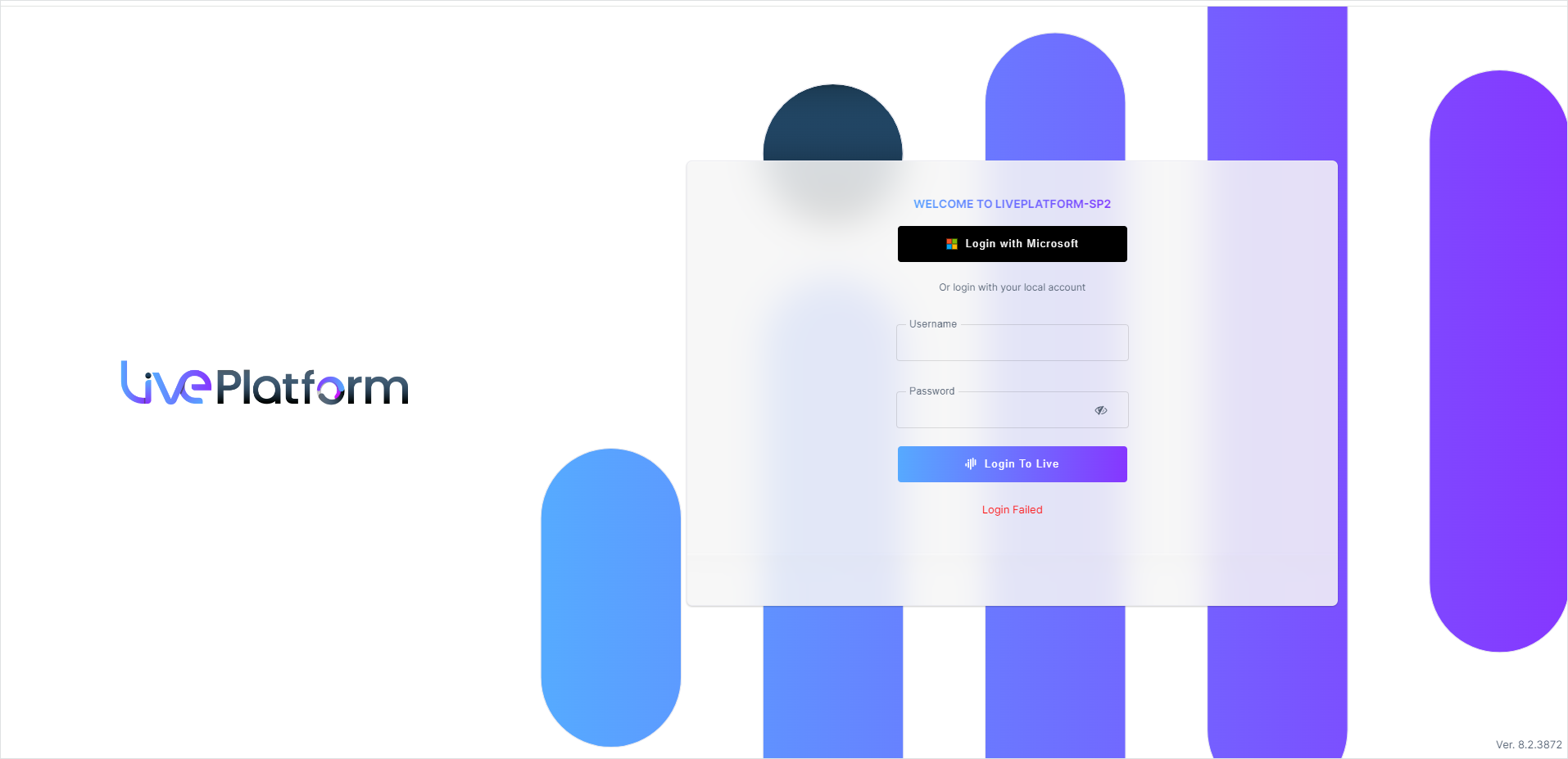
Select the Consent on behalf of your organization check box and then click Accept. An Azure Enterprise application is established on your Azure tenant. At this stage, the Login Fails dialog is displayed. |
|
5.
|
Proceed to Configure Live Platform Operators and Roles. |
If for any reason, you did not select Consent on behalf of your organization or do not have ‘Admin’ permissions for this tenant, then this operation cannot be successfully applied until approved by Tenant Admin, see Granting Admin Consent.